Showing posts with label Primer. Show all posts

Saturday, January 18, 2025

Installation differences in PowerShell Versions


Getting Versioning Clarity

PowerShell and Windows PowerShell are separately installed and you can run supported commands using either environment.

There are two versions of Powershell:

  1. Windows PowerShell - Windows PowerShell is available exclusively for the Windows OS.   All versions of Windows PowerShell up to and including 5.1, which is the version available with Windows 10, are integrated with a Windows OS.

  2. PowerShell - PowerShell is shipped, installed, and configured separately from Windows PowerShell.  First released as PowerShell Core 6.0 in 2018, it was the first version that offered multi-platform support, extending its availability to macOS and Linux operating systems.  However, PowerShell 7 is the defacto for cross-platform scripting in PowerShell with v6 retired.


Installation differences in PowerShell Versions

Installing the latest version of PowerShell results in the following when compared to Windows PowerShell:

  • Separate installation path and executable name.

    • Windows PowerShell 5.1 is installed in the $env:WINDIR\System32\WindowsPowerShell\v1.0 location.

    • PowerShell 7 is installed in the $env:ProgramFiles\PowerShell\7 location.  The new location is added to your PATH, which allows you to run both Windows PowerShell 5.1 and PowerShell 7.

    • In Windows PowerShell, the PowerShell executable is named powershell.exe.

    • In version 6 and newer, the executable is named pwsh.exe. The new name makes it easy to support side-by-side execution of both versions.

  • Separate PSModulePath. By default, Windows PowerShell and PowerShell 7 store modules in different locations.  PowerShell 7 combines those locations in the $Env:PSModulePath environment variable.  

    • When you import a module by name, PowerShell checks the location that $Env:PSModulePath specifies.  This feature allows PowerShell 7 to load both Core and Desktop modules.

  • Separate profiles for each version. A PowerShell profile is a script that runs when PowerShell starts.  This script customizes the PowerShell environment by adding commands, aliases, functions, variables, modules, and PowerShell drives.

    • In Windows PowerShell 5.1, the profile's location is $HOME\Documents\WindowsPowerShell.

    • In PowerShell 7, the profile's location is $HOME\Documents\PowerShell.
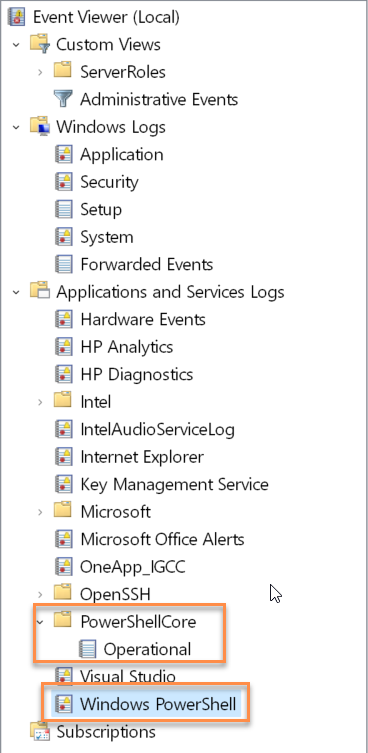
  • Separate event logs. Windows PowerShell and PowerShell 7 log events to separate Windows event logs (if using a Windows Server or PC).
 

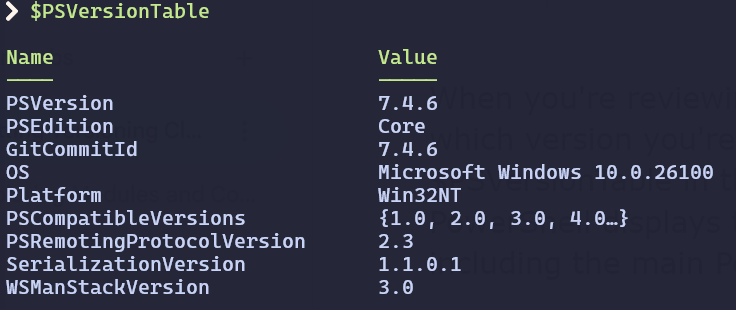
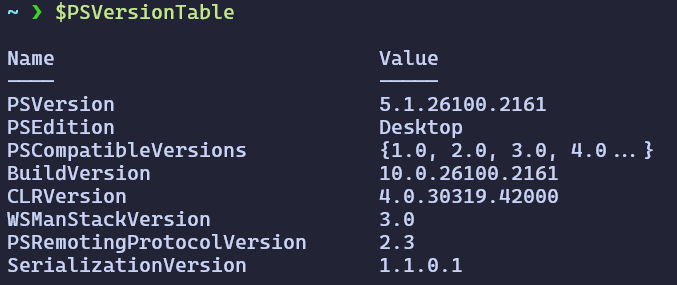
When you're reviewing a PowerShell session, it's important to determine which version you're using.  To determine the current version, enter $PSVersionTable in the PowerShell console, and then select Enter.  PowerShell displays the version numbers for various components, including the main PowerShell version number.
 

PowerShell and Bit-ness

  • On 64-bit operating systems, the PowerShell host applications are available in both 64-bit (x64) and 32-bit (x86) versions.

  • On 32-bit operating systems, PowerShell’s host applications are available only in 32-bit versions.  When working with Windows PowerShell, you'll notice that the icons and window title bars don't have the (x86) designation.  Instead, they display simply as Windows PowerShell and Windows PowerShell ISE in the Start menu.

  • If you intend to use PowerShell to perform administrative tasks on computers that have User Account Control (UAC) enabled, you might have to take an extra step to run PowerShell cmdlets with full administrative credentials.  To do this, right-click or activate the context menu for the application icon, and then select Run as Administrator. When you're running PowerShell with administrative credentials, the host application’s window title bar will include the Administrator prefix


Saturday, July 29, 2023

PowerShell notes from my scratch pad

The Basics


Commands = cmdlets

Cmdlet = function or task-based script

Cmdlets can be used individually or in combo with more complex tasks.

Cmdlet format = verb-noun (i.e., Get-Service, Restart-Computer, Add-User, etc.)

The biggest advantage of Powershell is that it is an object-based shell.

Every object in Powershell is a .NET object from the .NET framework class.

Pipelines = used to connect a group of cmdlets together to build a complex task.

Pipeline Syntax

PS> cmdlet1 | cmdlet2 -parameter1 arguement1 | cmdlet3 -paramenter1 arguement1 arguement2

Example:

PS > Get-Process | Sort-Object -Property CPU -Descending | Select-Object -First 4 -Property ProcessName CPU, VirtualMemorySize | Format-Table

ProcessName      CPU         VirtualMemorySize
-----------      ---         -----------------
vpnui           865.078125      207405056
RuntimeBroker   243.046875      398295040
accuweather     189.171875      357261312
explorer        134.109375      610177024

Aliases

Aliases = used as pointers for cmdlets to make it easy to remember long commands or make them more recognizable.

Get-ChildItem cmdlet = “dir” for DOS and “ls” for UNIX to list contents of a folder

These aliases can be used in Powershell.

No Aliases Example

PS > Get-Process | Sort-Object -Property CPU -Descending | Select-Object -First 5 -Property ProcessName, CPU, VirtualMemorySize | Format-Table

Alias Example

PS > gps | Sort -Property CPU -Des | Select -First 5 -Property ProcessName, CPU, VirtualMemorySize | FT

To get list of alises, use the following command (let)

PS:> Get-Alias

Note: You can create your own aliases but must persist them to be used at another time. It is highly preferred to use Powershell Profiles instead.

Variables and Data Types

Variables = defined with “$” as the prefix, i.e., $var, $arr4, etc.

In this example, we define different data types, but Powershell still can perform a math operation since it infers all variables should be treated as numbers if adding all together:

PS > $a = 1; $a.GetType()

IsPublic IsSerial Name BaseType
-------- -------- ---- --------
True True Int32 System.ValueType


PS:> $b = "2"; $b.GetType()

IsPublic IsSerial Name BaseType
-------- -------- ---- --------
True True String System.Object


PS:> $c = 3.5; $c.GetType()

IsPublic IsSerial Name BaseType
-------- -------- ---- --------
True True Double System.ValueType


PS:> $a + $b + $c

6.5

Comparison Operators


Not equal = -ne

Equal = -eq

Less than = -lt

Greater than = -gt

Contain = -contains

Not contain = -notcontains

Less than or equal to = -le


Wildcards


Like = -like

Not like = -notlike

Match = -match

Not a match = -notmatch

Replace = -replace


Working with Arrays and hash tables

Arrays

· Array in Powershell is zero based list of objects.

· No need to define the data type like in C#.

· Array can be defined simply by @() or create a variable and assign the list to it

Examples and output:

PS:> $arr = @()

PS:> $arr = 1,2,3,4,5

PS:> $arr.GetType()


IsPublic IsSerial Name BaseType
-------- -------- ---- --------
True True Object[] System.Array


PS:> $arr[0]
1
PS:> $arr[3]
4
PS:> $arr[4]
5
PS:> $arr
1
2
3
4
5

Hash Tables

Syntax - @{}

$ht = @{}


Working with Script Files

All Powershell files have a .ps1 extension.

Powershell files can be created in any text editor but cannot be executed by simply double-clicking the file (for security reasons)

.ps1 = .exe file

Powershell scripts have $args built-in functionality, just like EXE files.

For example:

$firstname = $args[0]

$lastname = $args[1]

Write-Host “Hello, $firstname $lastname”


Powershell Script Execution (Policies)

Execution policy: This is a security policy that defines how Powershell scripts should be executed on your system. There are four options:

1. Restricted: (Default for Windows 2012 R2) No script allowed to execute.

2. RemoteSigned: Script execution only allowed for scripts you wrote on your local, but not external scripts (i.e., Internet)

3. AllSigned: All scripts must be signed by a trusted publisher, even on your local

4. Unrestricted: All scripts can be executed.

To view your currently set execution policy, type the following:

PS:> Get-ExecutionPolicy

Unrestricted


Running Powershell Scripts

You can either navigate to the folder that contains the Powershell script and type the following:

PS C:\My_Powershell_Scripts\Greetings.ps1 Harry Douglass

Hello, Harry Douglass

Or by typing ./<scriptfilename>.ps1


Note: PowerShell ISE is considered a legacy GUI and supports PS 5, it is recommended to now use Visual Studio Code IDE and install the Powershell extension to get robust IntelliSense support, and incorporates PowerShell Core.

Getting Help

The Powershell console has robust help features.

Use the “Get-Help” cmdlet with any cmdlet you wish to know more about, for example:

PS:> Get-Help Get-Process

Getting more detailed information

PS:> Get-Help Get-Process -Detailed

Getting examples of actual usage of a cmdlet

PS :> Get-Help Get-Process -Examples

Lastly, reading long pieces of information in the console window can be difficult. Powershell has a “-ShowWindow” parameter to help with this: